Kivo Pro Series
The Kivo Pro Series are the ultimate in Red Light Therapy panels. Constructed from high quality aluminum, they're designed for the user that is interested in ultimate control over their red light experience, through the use of dimmers, timers, and modulation - all via a customizable LCD screen. Our Pro Series devices come with an industry leading 5 year warranty.
Kivo Pro Series PDF User Manual
Pro Specifications
- Irradiance at 3 inches: 190mw/cm²
- EMF emission: 0 @ 3 inches
- Constructed from painted aluminum
- Lens Angle: 30 degree
- Lifespan: >100,000 hours
- Certifications: FDA, ROHS, CE, FC
- Cooling fan
- Wavelengths:
- Red Light
- Near InfraRed
- Blue
- Timer
- Brightness
- Modulation modes
- Sound: 52db @ 15cm
- LCD Control Panel
- Set multiple default settings
- Set brightness between 0-100% in 1% increments for each of the wavelengths
- Start
- Timer
- Pause
- Warranty: 5 year
- Return Period: 30 days
What's in the Box?
- Kivo Pro Series panel
- Remote Control
- FREE Kivo Goggles
- Power Cable
- Kivo THREE and THREE-WIDE come with a door or wall hanging kit with pulley, and door clamp.
First Use
Remove the Kivo Pro Series from the packing box, ensure no protective film is on the front of the unit. Ensure the switch on the rear is set to off, then plug in the device (we recommend using a surge suppressor power bar to extend the life of the device). Switch on, and the LCD panel will power on.
Using a Kivo PRO System
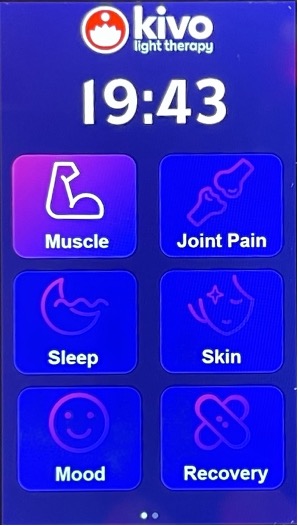
POWERING ON
When you power on the PRO System, this display will show 6 short-cuts to regularly used programmes.
You can also swipe right to access the customization panel for the system.
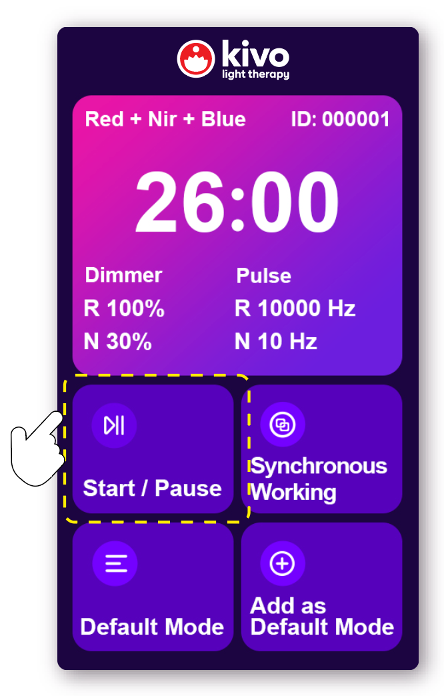
START / STOP
The main display at the top of the screen shows which modes are enabled, the percentage brightness of the models, and any pulse model options.
You can simply press START to start the timer and begin treatment, or pause at any time.
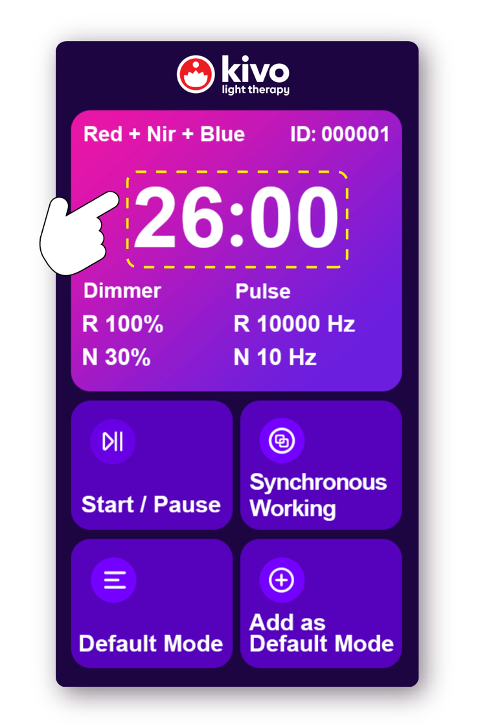
SETTING THE TIMER
Click on the countdown timer to access a swipe-able timer
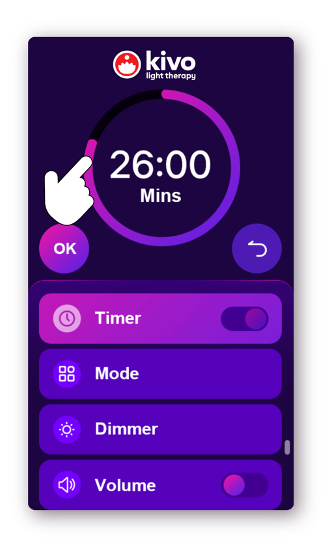
ADJUSTING THE TIMER
Slide your finger around the clock to adjust your session time and the auto shut-off of the programme.
To enable always on mode, toggle the TIMER switch to off (the left side).
Press OK to set, or the back button to cancel.
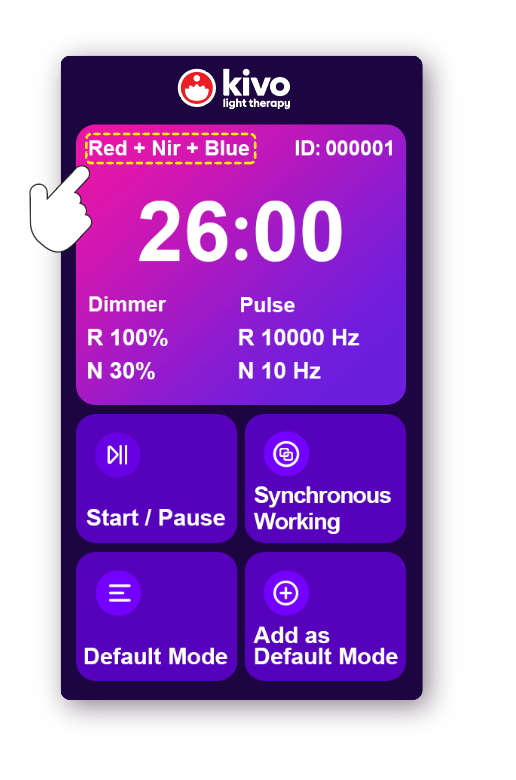
CHANGE WAVELENGTH MODES
Press on the top element, and then select MODE to change the wavelengths mode.
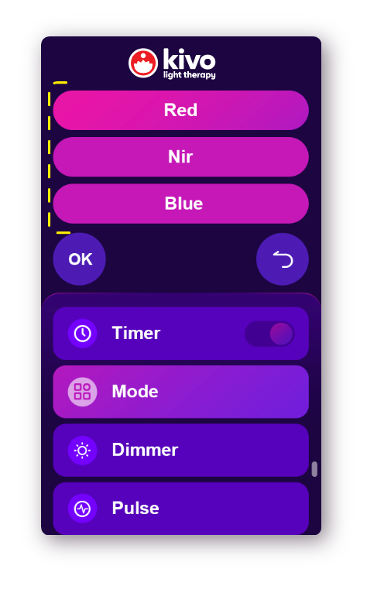
ADJUST WAVELENGTHS
You can enable or disable red, near-infrared, and blue modes (we recommend using Blue modes before lunchtime and ALWAYS use goggles).
Press OK to confirm, or the back button to cancel.
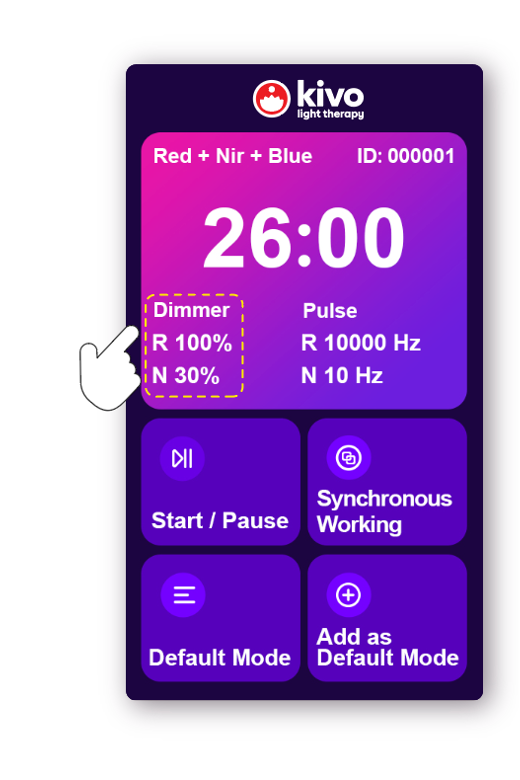
BRIGHTNESS
You can adjust the brightness of the RED or NEAR-INFRARED leds. Click on the top element, then select DIMMER.
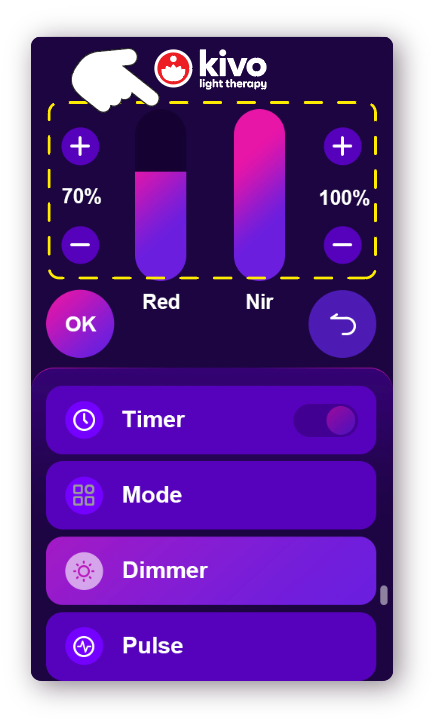
ADJUST BRIGHTNESS
You can drag the bar up or down, or use the + or - buttons to change the brightness.
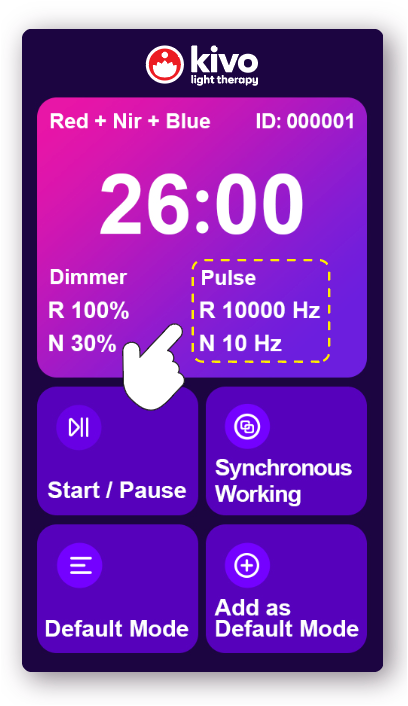
PULSE MODES
Pulsed light therapy can help if heat is an issue, and can offer different treatment outcomes.
You can change the pulse modes by clicking the top element and then press PULSE
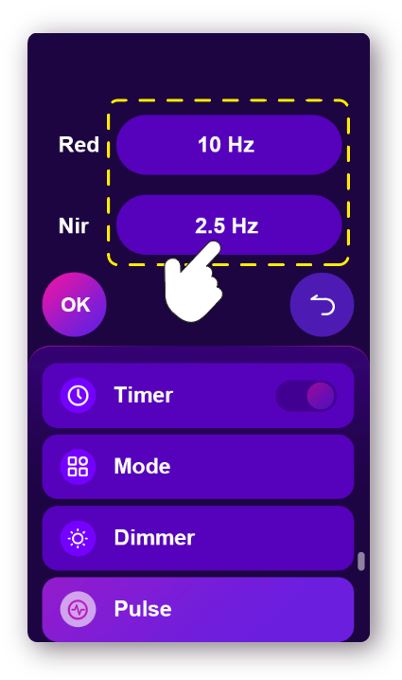
ADJUST PULSE MODES
You can select from preset PULSE mode options.
IMPORTANT
If you are sensitive to flashing lights DO NOT USE PULSE MODE.
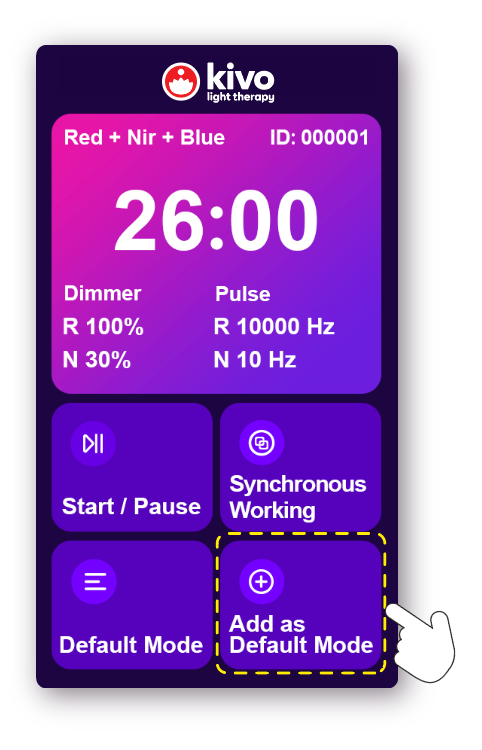
SAVING AS PRESET MODES
Once you are happy with the timer, brightness, wavelength modes, and pulse settings - click on ADD AS A DEFAULT MODE to be able to save this setting.
You can have a MORNING setting for example that has blue light mode enabled, and an EVENING mode for red only at half brightness.
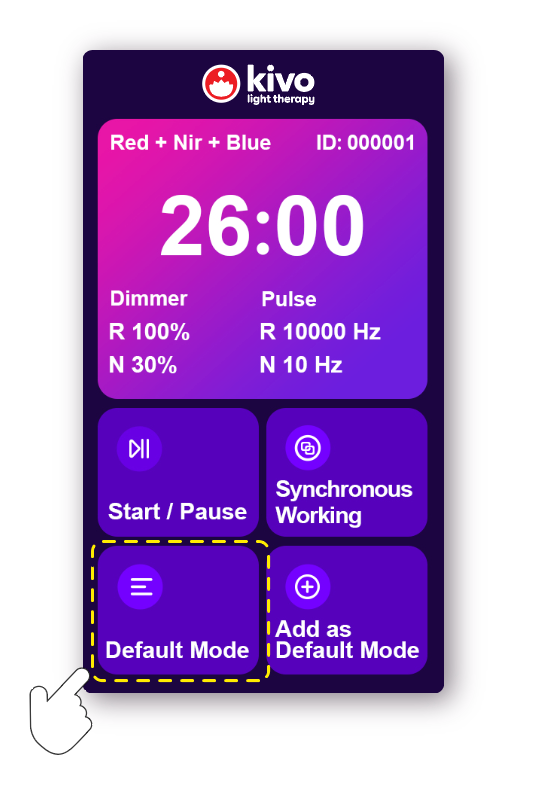
MANAGING PRESET MODES
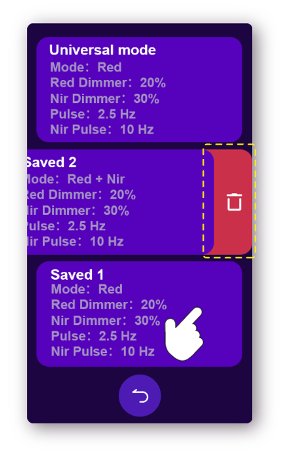
Press DEFAULT MODE to access the list of presets you have made.
DELETING PRESETS
Swipe left across the preset and click the red trash to permanently delete the preset.
CUSTOM NAME
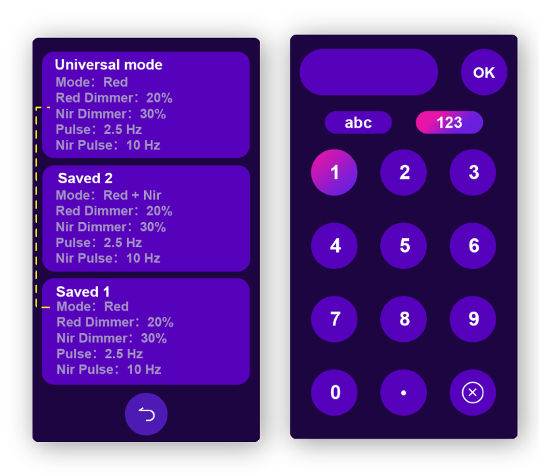
Long press the preset to change the name of the setting.
SYNCHRONOUS MULTI-PANEL CONNECTIVITY
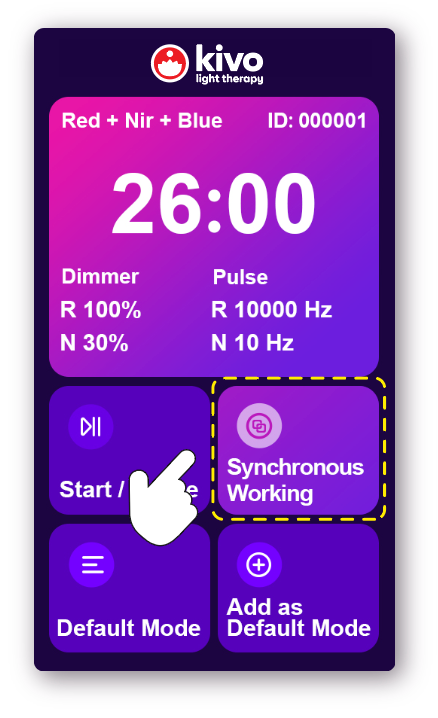
To join multiple panels together and wirelessly switch on and off panels, press SYNCHRONOUS WORKING for 5 SECONDS
SEE CONNECTED DEVICES
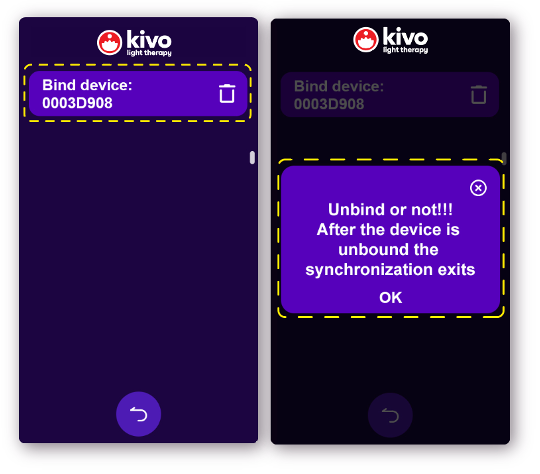
Click SYNCHRONOUS WORKING to access the list of panels that are connected, long press on the device and press the trash button to delete and remove from sync.
Frequently Asked Questions
Yes, you can select 30 minutes, all the way through to 1 minutes using a sliding timer.
Yes, you can enable or disable RED, NEAR-INFRARED, or BLUE wavelengths.
Blue light is amazing for acne, spots, and skin issues. The blue light helps kill bacteria, viruses, and fungi - and Red + NIR helps your skin heal. You can also use BLUE modes to help with seasonal affective disorder by using blue light in the morning.
You can disable blue light if this is not needed
If there are fingermarks or grease on the screen, do not soak or spray water or liquid onto the screen. Using a lint free cloth, spray a laptop screen spray onto the cloth, and then lightly wipe the screen.
If you press too hard, or the cloth is dirty you could risk damaging the screen and voiding the warranty.